MFP Paper and/or Toner Warning Messages
When you log into the SLNX Embedded software on an MFP to release a secure print job, this message will pop up to indicate that the MFP is out of paper and/or toner. If there is no paper in Tray 1, or if one or more of the toner cartridges is empty, this configuration ensures you are notified at the MFP at the start of printing with one of the following messages.
No Paper
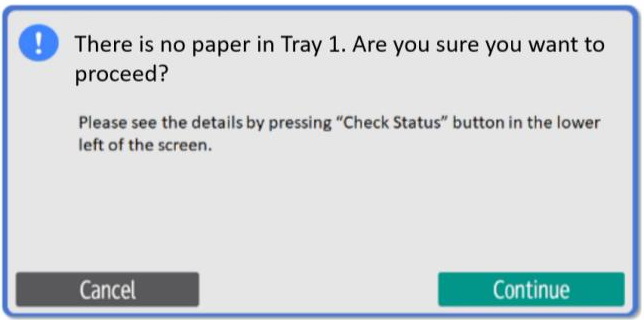
Press Cancel to stop the print job. Alternatively, you can add paper to Tray 1, and then press Continue to proceed with the selected job.
You may also see the message "Paper is low and print may not be completed due to no paper."
No Toner
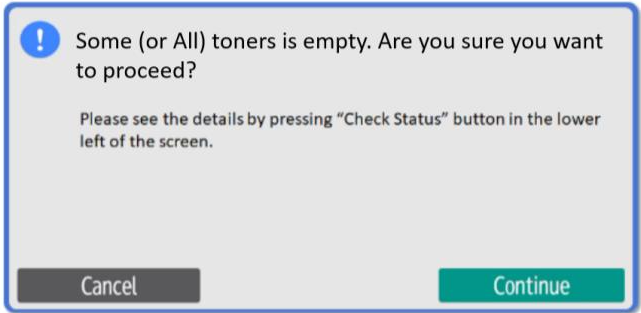
The toner message is displayed when only one toner is empty, even if the toner is not needed for printing. For example, if you are printing a monochrome job, but the empty toner cartridge is a color cartridge, the message pops up regardless.
If both situations occur at the same time (where there no paper in Tray 1 AND a toner cartridge is empty), the No Paper message is displayed first, and when cleared, the Empty Toner message then appears.
You may also see one of the following messages if an error occurs:
-
There is no developer (developing powder)
-
There is no toner.
-
Toner is low and print may not be completed due to no toner.
-
Waste toner bottle is full.
-
A paper jam has occurred in the device.
-
Photoconductor is not available.
-
The printer is trying to print a PDL job that cannot be printed.
-
Unit set is defective.
-
Unit set needs to be replaced.
